How to Add a Third-Party Verification Method for dlrSecured Identity Management
An employee may choose to add a
Note - dlrSecured authentication can be set up with any third-party mobile app that supports the time-based one-time password (TOTP) algorithm.
-
When signing on using dlrSecured, select the Update Verification Data After Login check box on the Enter Your Email User ID screen, the Enter Your Password screen, or the Enter Your Verification Code screen.
1 -
Continue the sign-on process, as normal.
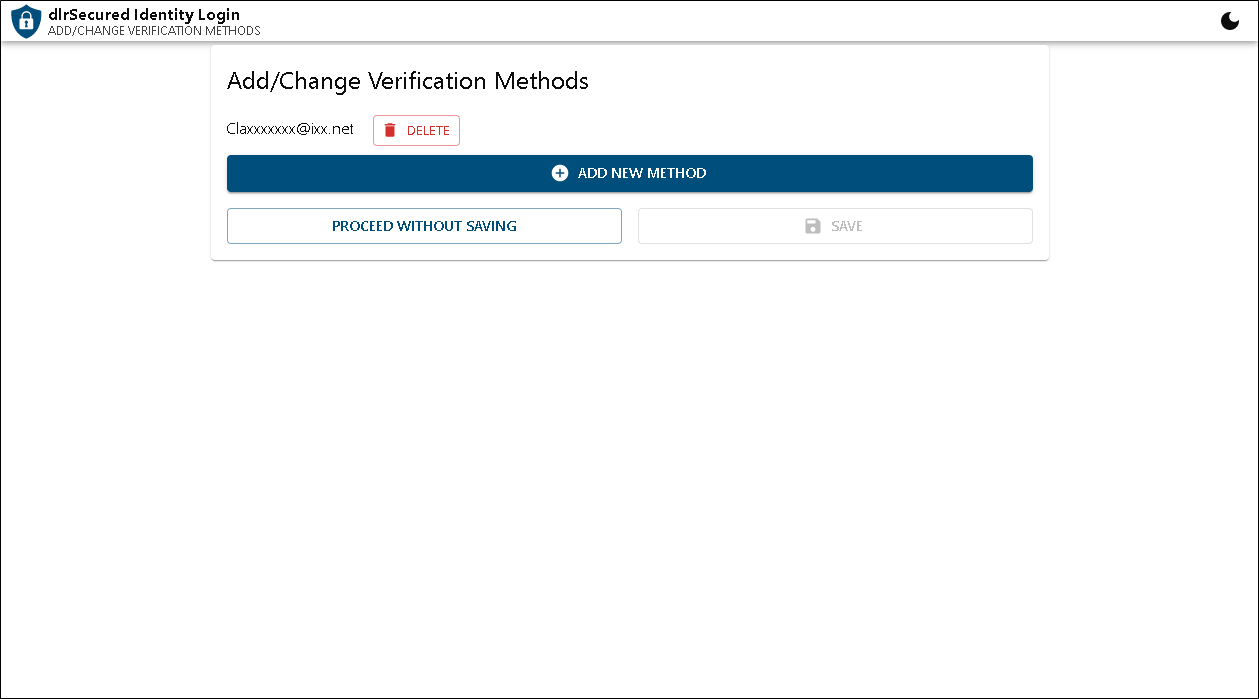
Once sign-on credentials have been verified, the Add/Change Verification Methods screen displays.
2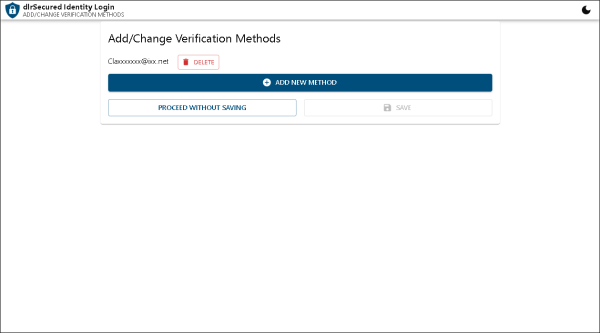
-
Click the Add New Method button.
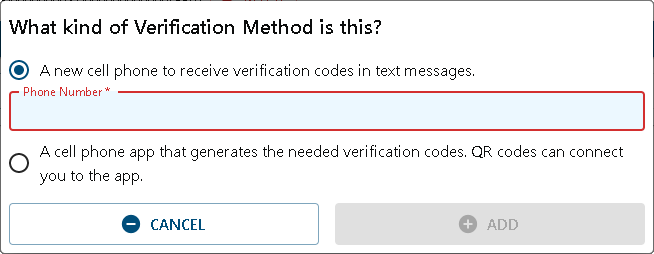
The What Kind of Verification Method Is This? window displays.
3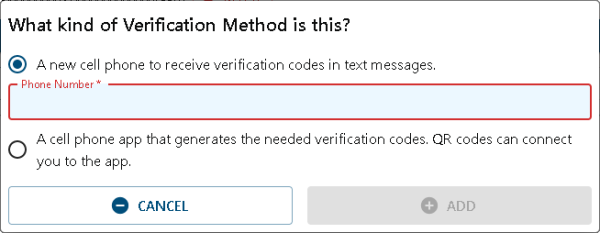
-
Select the A cell phone app that generates the needed verification codes. QR codes can connect you to the app. option button.
The App Description field displays.
4 -
Enter a brief description of the app in the App Description field.
5 -
Proceed to step 7.
Note - If employees are not required to confirm verification methods, click the Add button and proceed to step
-or-
Select the Manual Key Entry check box to manually enter a set up key using the mobile app.
The Key field displays. Proceed to step 9.
6 -
Scan the QR code on the mobile device and complete the setup on the mobile app, as needed.
7 -
Click the Next button to close the window containing the QR code.
The Verification Code window displays. Proceed to step 11.
8 -
Complete the verification method setup on the mobile app, as needed.
Note - If employees are not required to confirm verification methods, click the Add button and proceed to step 13. Settings for requiring confirmation are defined on the Configuration screen on the dlrSecured web site. For more information, refer to Configuration View Screen.
9 -
Click the Next button.
The Verification Code window displays.
10
-
Enter
11 -
Click the Add button.
The Verification Code window closes, and the new verification method displays on the Add/Change Verification Methods screen.
12 -
Click the Save and Proceed button.
The verification method is saved, and the sign-on process is complete.
13

Click here for a list of products that may be mentioned in this help file.